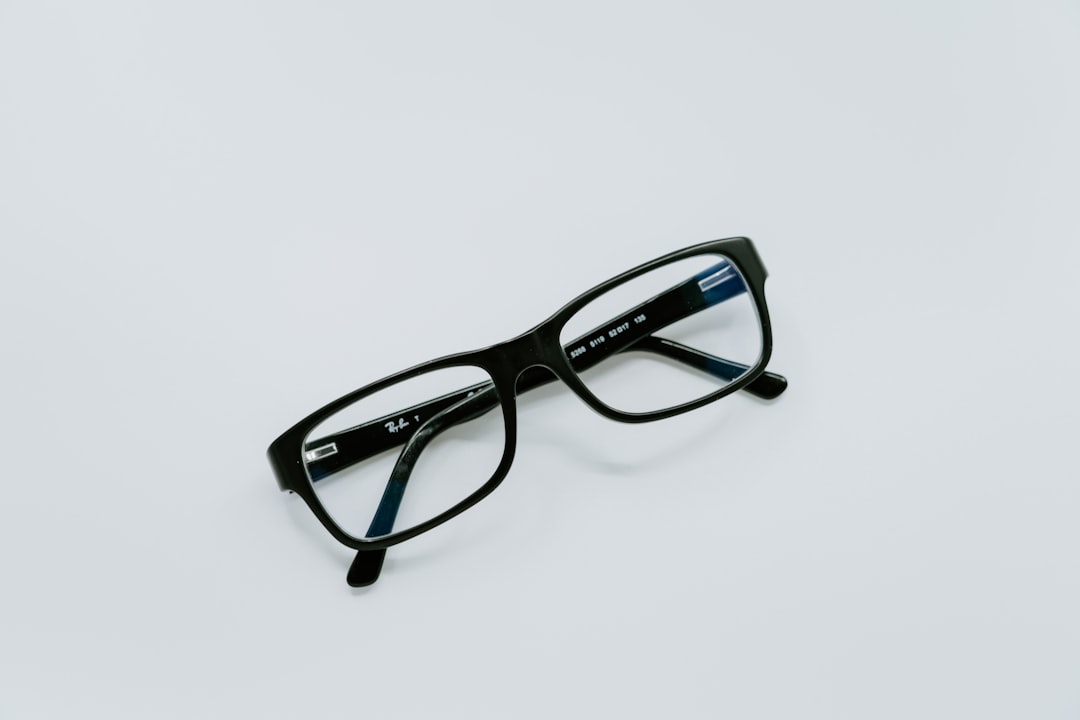
Stop guessing how frames will look — build a compact home try-on nook that gives you consistent lighting, clean reflections, and one-button automation
Buying glasses online in 2026 should feel as reliable as trying them on in a store. The problem many shoppers face is the uncertainty: will frames suit my face, will lenses show reflections, and will AR try-ons behave if my Wi‑Fi is laggy? This DIY guide solves those pain points. You’ll get a small, repeatable try-on station with the right lighting setup, a quality mirror, a stable phone tripod, and smart plugs that automate everything—plus a secure guest Wi‑Fi network so AR fittings run smoothly and safely.
Why set up a dedicated try-on nook in 2026?
AR try-on tech improved dramatically through late 2024–2025: on-device ML, phone LiDAR sensors, and standardized face-mesh models made virtual fittings more accurate. In 2026, the difference between a casual selfie and a controlled try-on photo still hinges on lighting, camera placement, and network stability. A compact, repeatable setup reduces guesswork, increases AR accuracy, and helps you compare frames under the same conditions—so you can buy with confidence.
What you’ll gain
- Consistent photos and AR alignment for side-by-side comparisons.
- Fast AR asset downloads and low latency on a separate guest network.
- Hands-free control with smart plugs and scenes ("Try-On Mode").
- Reduced lens glare and true color rendering with proper lighting.
What to gather (shopping list)
Keep the station compact—most of this fits on a small wall or corner. Here’s a practical kit to assemble for under a few hundred dollars, depending on brands.
- Smart plug(s): Matter-certified if possible (for multi-vendor compatibility). One for the ring light, one for side fill lights or mirror LED strip.
- Ring light: 10"–18", adjustable brightness and color temperature, CRI >90 recommended.
- Two soft-fill LED panels or small softboxes (optional) for side/back fill to reduce flatness and harsh reflections.
- Phone tripod: solid, 1.2–1.7 m height, with a horizontal arm or phone clamp.
- Mirror: 20" x 30" or similar wall-mounted mirror with tilt bracket; acrylic mirrors work for lighter weight but choose glass if longevity matters.
- Router that supports guest networks and good 5GHz coverage (mesh recommended for larger homes).
- Power strip (surge protected) to centralize plugs; avoid daisy-chaining smart plugs.
- Optional: polarizing filter for phone camera, background curtain (neutral gray), small foam board reflectors.
Step-by-step setup
1. Location and mirror placement
Pick a small wall or closet nook near a power outlet and within good Wi‑Fi coverage. Mount the mirror so its vertical center aligns with your eye level when seated or standing, depending on how you normally try glasses. For a compact space, a 20" x 30" mirror is ideal—tilt it slightly forward (5°–10°) to minimize ceiling reflections.
2. Lighting: the most important piece
Good lighting gives AR algorithms consistent facial landmarks and produces realistic frame colors.
- Ring light as the key: Place a dimmable ring light around the phone camera or just behind the phone for even frontal illumination. Use a color temperature of 4500K–5500K to mimic daylight and keep skin tones natural. Aim for CRI ≥90 so frame color is accurate.
- Soft-side fill: Add one small LED panel at 45° to the face on either side set at 60% brightness to add depth and reduce flatness. If you notice strong reflections on lenses, lower side panel brightness or move panels slightly higher/closer.
- Background and contrast: Use a neutral medium-gray backdrop—this prevents color casts and helps AR segmentation perform better. Avoid bright backlight; place a dim backlight if you want separation from the wall.
- Target brightness: Aim for roughly 1000–2000 lux on the face for phone-based AR at typical distances (0.8–1.5 m). If you don’t have a lux meter, set ring light brightness to 60–80% and adjust by eye to reduce blown highlights on lenses.
3. Phone and tripod positioning
For consistent AR fits and photos:
- Mount the phone at eye level, 0.9–1.5 m away from the sitter. For close-up try-on shots that show frames clearly, start around 1 m and adjust.
- Use portrait orientation for most AR try-on apps; ensure the camera lens is unobstructed by the ring light. If your ring light mounts behind the phone, center the phone camera within the ring.
- Stabilize the tripod to avoid shake—use the horizontal arm for slight offset if needed. Record a test video to confirm smooth tracking.
4. Smart plugs and automation
Smart plugs let you turn the ring light and side lights on/off, control brightness scenes, or schedule a session without touching the hardware. In 2026, Matter-certified plugs are ideal because they work across major hubs (HomeKit, Alexa, Google).
- What to automate: Ring light power, side panel power, mirror LED strip, and an ambient fan or air purifier if you want a quiet zone. Optionally include a small smart speaker to trigger voice commands or timers.
- Scene example: Create a "Try-On Mode" scene that sets ring light to 100% (5500K), side panels to 60%, and mutes smart speakers. Use geofencing or a calendar trigger if you frequently try at the same time.
- Safety and limits: Only plug resistive loads and LED fixtures into smart plugs—avoid high-current appliances. Check smart plug ratings and keep cords tidy to prevent trip hazards.
5. Guest Wi‑Fi for AR fittings
Many AR apps download models, textures, or use cloud compute. Running them on a separate guest network improves privacy and protects your main devices while keeping traffic predictable for the try-on station.
- Create a guest SSID with WPA3 if your router supports it, and choose a strong passphrase. Enable client isolation so the phone can access the internet but not other devices on your main LAN.
- 5GHz preference: Use 5GHz for AR apps where bandwidth and low-latency matter, but remember some smart home devices still use 2.4GHz; keep your smart plugs on your main or a dedicated IoT SSID if needed.
- Quality of service (QoS): If your router supports it, prioritize the phone or the try-on SSID for low-latency traffic. Mesh systems tested in 2025–2026 show large gains in streaming AR assets reliably—use mesh nodes if signal dips.
- Security: Limit guest network access time or bandwidth if you want to avoid heavy downloads during busy home hours.
Fine-tuning for realistic lens appearance
Lens glare and reflections are the biggest visual hurdle when judging frames. Here’s how to make frames look like they will in real life.
- Angle the frames: Slightly tilt the frames on the face to see how reflections change with head movement—AR models often mimic this and will look more natural when lighting matches.
- Lower ring brightness: If you see a bright, circular hotspot on the lenses, reduce ring light intensity or move it farther from the face.
- Adjust color temp: For daytime looks use ~5000K; for warmer indoor shots try 3000–3500K. Record both to compare.
- Use side-fill sparingly: Side panels soften the face and reduce facial shadows but can create secondary reflections. Move them higher or use diffusers if reflections appear.
- Polarizer option: A polarizer on the phone camera can remove unwanted reflections for photos—less helpful for live AR which relies on the raw camera feed.
Troubleshooting common issues
AR alignment feels off
- Ensure even frontal lighting and avoid strong backlight.
- Use a LiDAR-enabled phone when possible for better depth maps—2025–2026 AR engines leverage LiDAR for superior fit.
- Recalibrate the app by moving your head slowly and letting the model re-lock to landmarks.
Glare makes frames unreadable
- Lower ring light brightness or tilt lights away from lens reflections.
- Turn on an anti-reflective coating option in the product visualization if the site offers it; otherwise compare the same frame in different lighting temps.
Wi‑Fi downloads stall
- Switch the phone to the guest 5GHz network and restart the app.
- Check router QoS or temporarily pause other streaming devices.
Case study: a compact 90‑second build
We set up a 0.8 m x 1.2 m corner try-on nook in a small apartment:
- Mounted a 20" x 30" mirror at eye level and hung a neutral gray curtain as a backdrop.
- Clamped a 12" bi-color ring light to a phone tripod and attached a Matter smart plug to control power and color presets.
- Added one soft LED panel at 45° and connected it to a second smart plug.
- Created a 'Try-On Mode' scene in the home hub that powers both plugs, sets ring to 5200K, and mutes the smart speaker.
- Created a guest 5GHz SSID with client isolation; tested the AR app—assets downloaded in 8–10 seconds and face mesh locked reliably.
The result: consistent, repeatable images and better virtual fit accuracy—saving time and returns with online purchases.
"Design the station once to make every try-on session faster and more reliable."
2026 trends and what’s next
Expect the following through 2026 and beyond:
- On‑device AR becomes standard: Lower latency and offline models will make AR try-on faster and less network dependent.
- Matter and cross‑ecosystem smart home integration will simplify automations across platforms—your 'Try-On Mode' will work whether you use HomeKit, Google, or Alexa.
- Better face scanning with phone LiDAR and depth sensors will increase frame alignment accuracy for curved or oversized frames.
- WebAR and WebXR adoption will reduce app installs—so guest Wi‑Fi and browser performance will be even more important for quick demos in 2026.
Quick checklist before your first session
- Mirror centered at eye level and slightly tilted forward.
- Ring light set to 4500–5500K, CRI ≥90 if possible.
- Phone on tripod at eye height, ~1 m distance for close-ups.
- Smart plugs assigned and scene created: 'Try-On Mode'.
- Phone connected to guest 5GHz Wi‑Fi with client isolation enabled.
- Take test photos and record a short video to check AR tracking.
Actionable takeaways
- Automate the routine: Use Matter-certified smart plugs to create a one-button 'Try-On Mode' so every session uses the exact same lighting and camera settings.
- Prioritize lighting: Invest in a high-CRI ring light and soft fill to get natural colors and reliable AR landmarks.
- Isolate AR traffic: Run AR apps on a guest 5GHz network with client isolation to improve performance and protect your main devices.
- Test, then compare: Capture the same frames under multiple color temps (warm, neutral, cool) to see which best matches real-world wear.
Final notes on privacy and safety
Keep your try-on station secure: use a separate guest network, require a password, and only use reputable AR apps that disclose data use. Use smart plugs from known vendors and verify firmware updates—Matter support will help future-proof your setup. Never overload smart plugs, and use surge-protected power strips to protect lighting gear.
Ready to build your try-on nook?
Set aside an afternoon, gather the small list above, and put your station together. You’ll get faster, more accurate virtual fittings and fewer returns—plus the confidence to buy stylish frames online. When you’re ready, try our virtual try-on, save comparison photos under the same settings, and shop with certainty.
Start building your try-on station now: pick a ring light with CRI ≥90, a Matter smart plug for simple automation, and create a guest 5GHz SSID. Then test two frames back-to-back under the same lighting—your future self (and your eyes) will thank you.
Call to action: Ready to see how frames look in your new station? Launch our AR try-on, connect to your guest Wi‑Fi, and use the 'Try-On Mode' scene. Share your best shot and get a personalized fit recommendation from our opticians.
Related Reading
- Windows Update Incident Response: Runbook For When Patches Break Critical Services
- Brand Safety & Advertising: What X’s Ad Comeback Claim Teaches Publishers About Revenue Reality
- From Workers’ Comp to Retirement: Why Local Insurance Market Changes Matter to Older Home-Based Business Owners
- From Stove to Store: How DIY Cocktail Brands Inspire Fashion Collaboration Gift Sets
- Game Night Snacks on a Budget: Recipes for Magic & Pokémon Booster Box Parties